WordPress + WooCommerce Integration
WooCommerce is a popular plugin for selling products/subscriptions for your own WordPress website,
You can sell products or provide a subscription system by installing our official WordPress plugin AtomX Services.
How to Integrate
Open your WordPress admin panel and go to the Plugins section → Add Plugin.
Type AtomX Services in the plugin search and install the plugin.
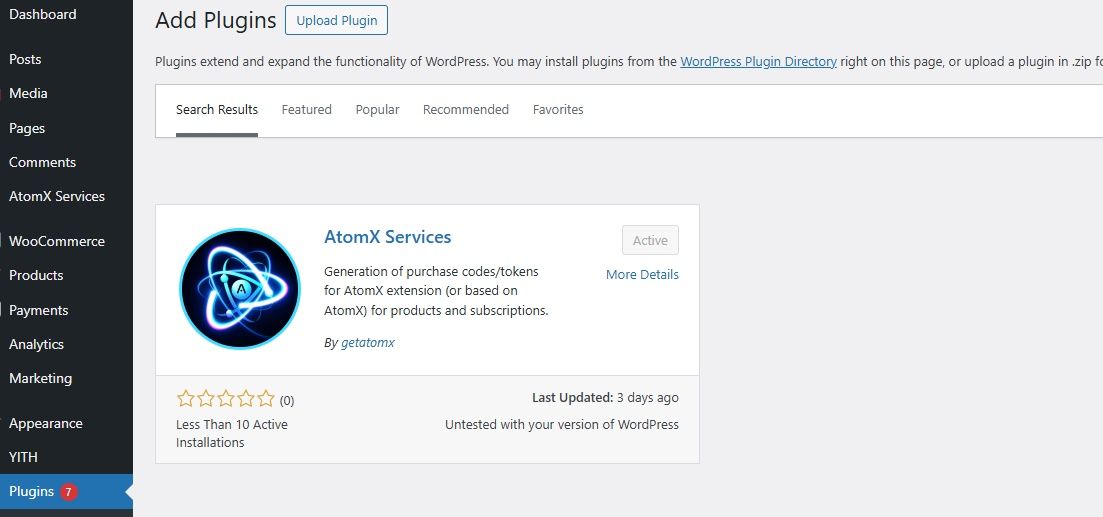
Activate the plugin in the plugins section if you haven't already. Once installed and activated, it will appear in the left menu under the name AtomX Services.
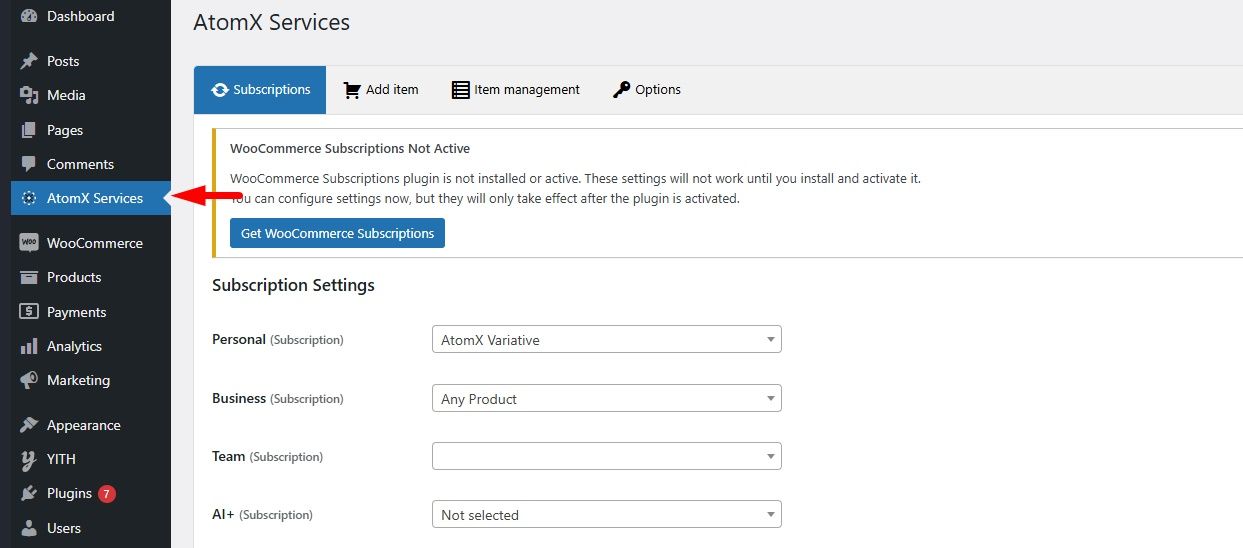
To connect the plugin to our servers, you need to go to our admin panel, the Integration Settings section, and find Auth Key.

Copy and paste the code to the AtomX Services → Options plugin on your WordPress site.
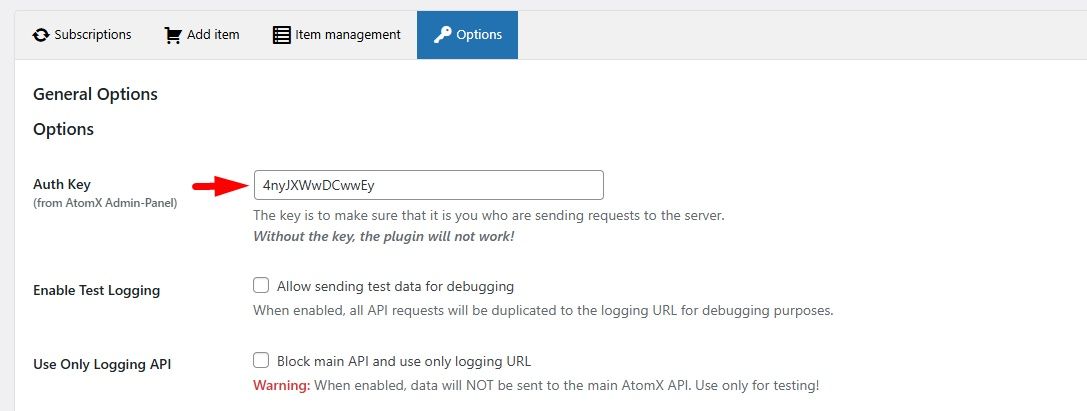
Save the settings and remember that the Auth Key on your site and in the AtomX admin panel must match, as this is a verification system that you are sending requests to our server.
Relationship Settings
Subscription
WooCommerce Subscriptions is extra plugin of the WooCommerce eco-system, if you are going to use the subscription system, it must be installed.
To link your product by subscription, go to the AtomX Services plugin settings → Subscriptions.
Find the product that is a subscription and add it to the required field.
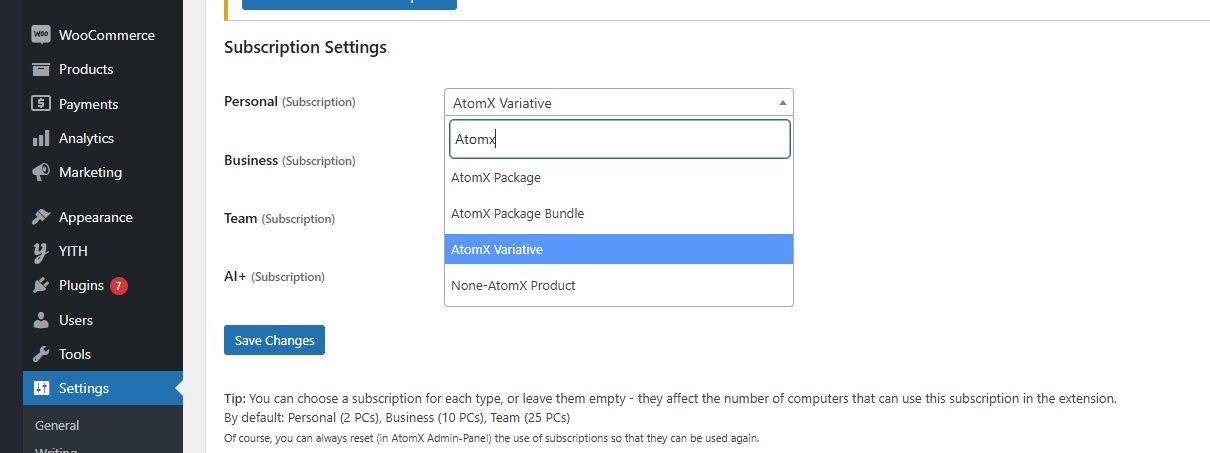
By default, the field type affects the number of computers that can simultaneously use the subscription: Personal (2 PCs), Business (10 PCs), Team (25 PCs)
When the available sessions are exceeded: the first authorized ones will be kicked out and their session will be closed, this cycle is repeated each time the authorization limits are exceeded.
Direct Sales
Direct sales only require the core WooCommerce plugin.
To link your product to the code issuing system, go to the AtomX Services plugin settings → Add item.
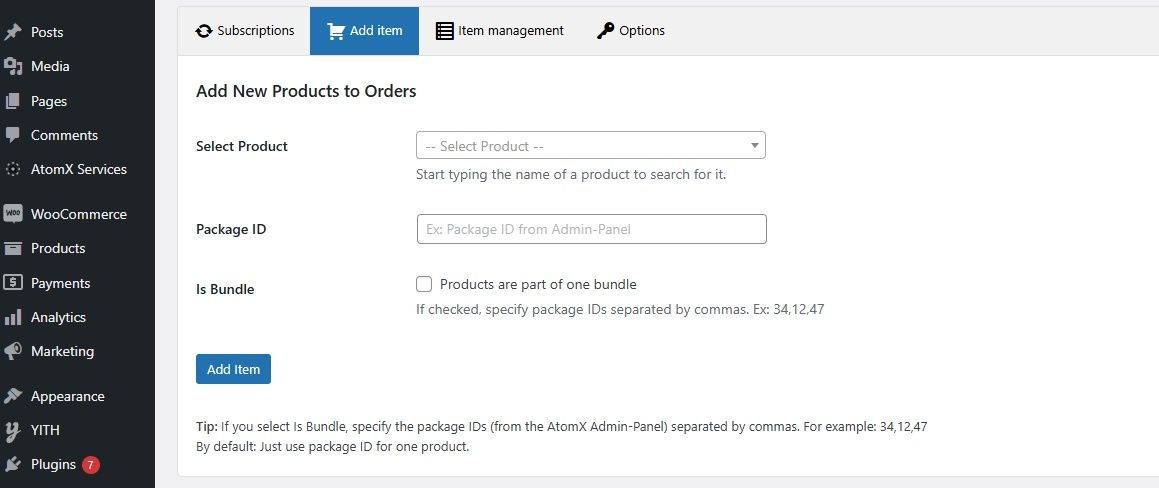
Select Product- create a new or select an existing product (if there are many products, use the search by name).Package ID- ID from AtomX admin panel (deprecated).Is Bundle- if packages are sold in one pack, you must specify the package IDs separated by commas (deprecated and optional).
After adding an item, when it is purchased, it will be assigned a purchase code (only for products added this way) and shown to the customer.
Get a purchase code / token
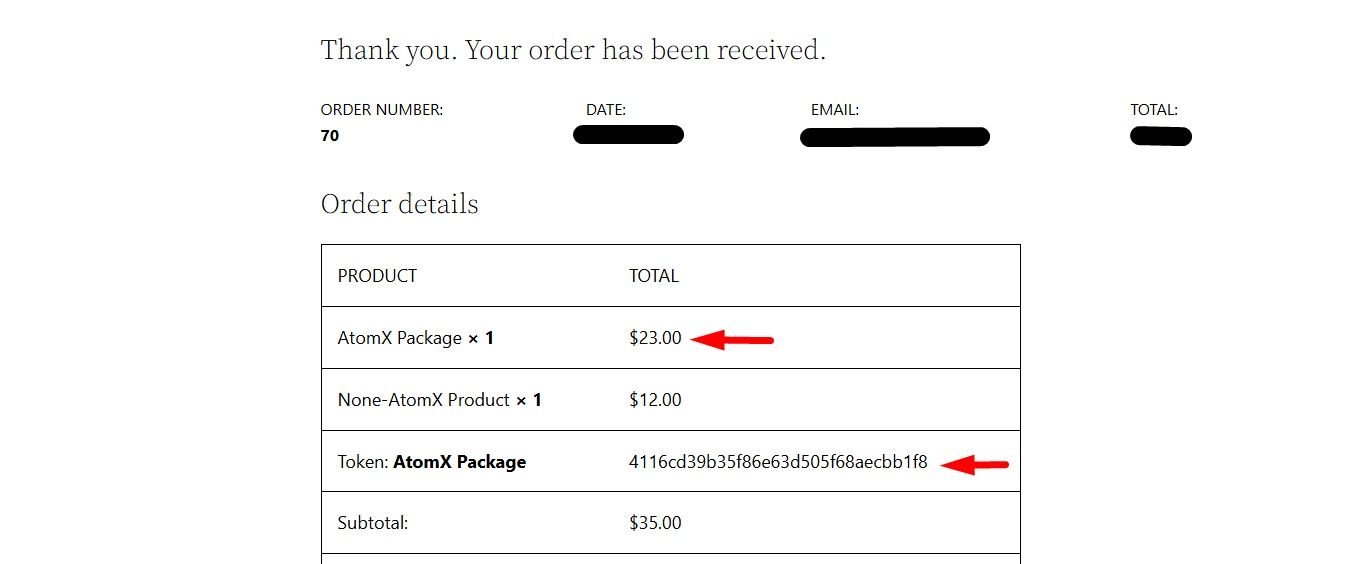
When a package/subscription is sold, the customer will see the purchase details as well as a purchase code/token that they can use to activate the package/access the subscription.
The purchase code/token will also be saved in the Purchases on the website and sent to the customer's email.