Testing & Debugging
Test Mode Features:
- In test mode, you can't run already compiled packages.
- In test mode, you can't add items to your favorites.
- The mode is complete and shows everything as it will be in the release package.
- To display the package header (image) in test mode: Place the header image in the folder containing the package's .ATOM file. The image name should be: custom_header_name.png (.PNG filetype).
Test Mode
Test mode allows you to run your package before compiling and debug it.
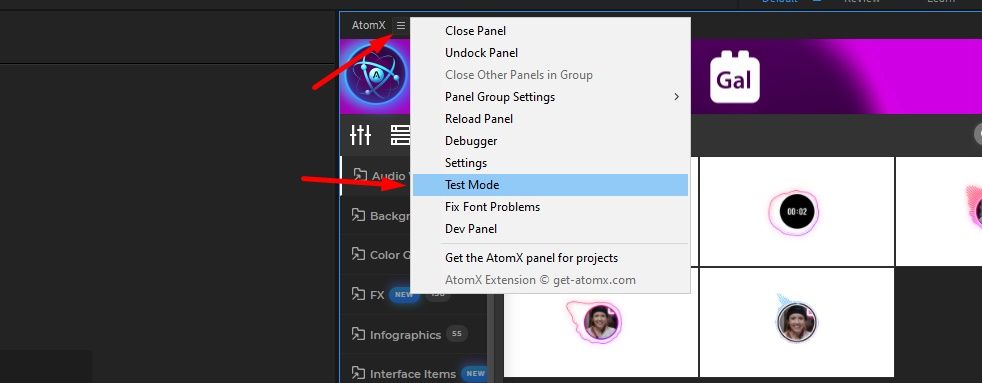
To launch test mode, open the extension and click the three lines → Test Mode.
Find your package and drag & drop into the extension.
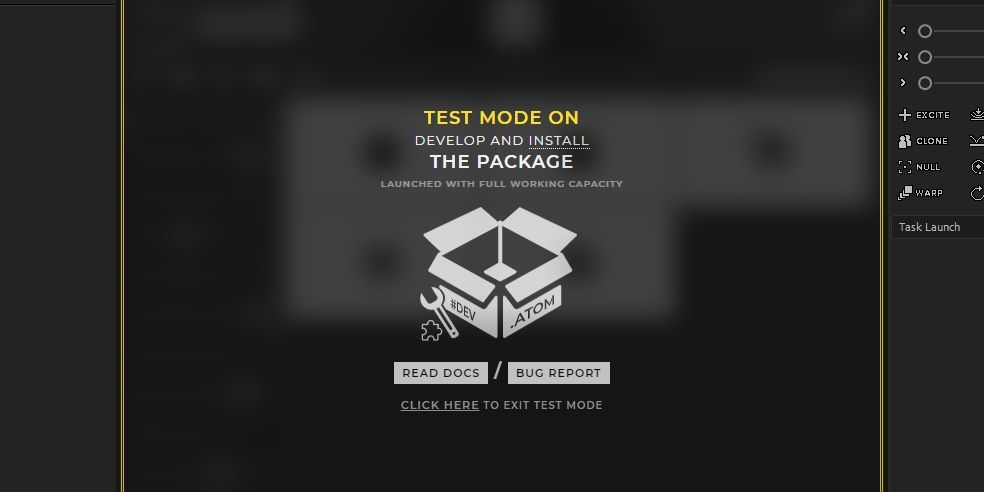
The package will automatically run without installation.
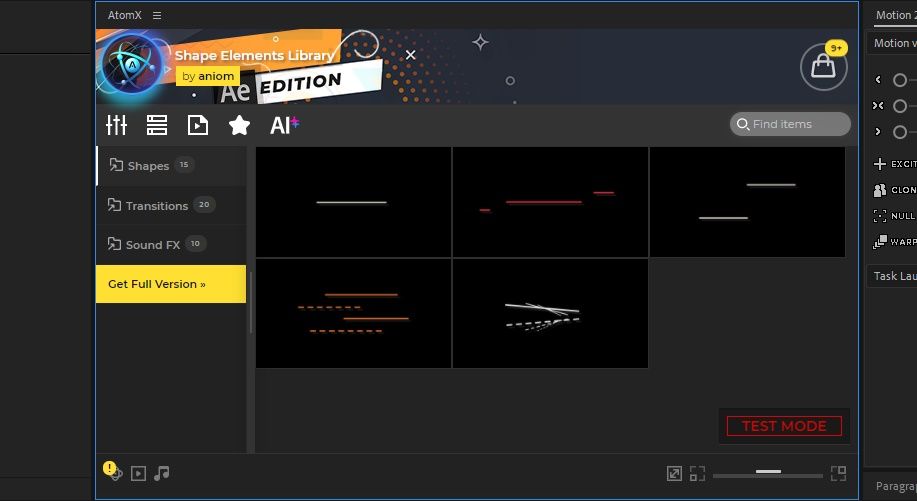
Refresh Content
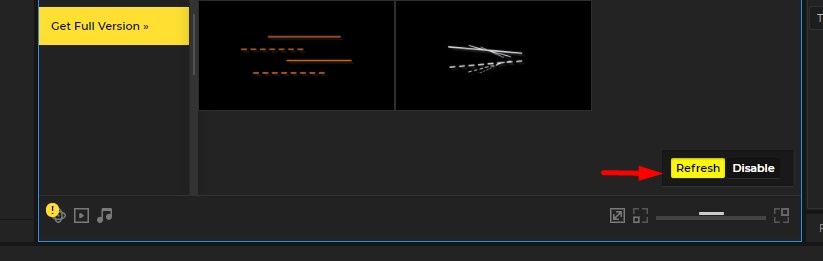
To see changes after editing your package file (.ATOM) - whether changes to the package structure or elements - click the Refresh button.
There is also a Disable button nearby that will allow you to exit testing mode.
Dev Panel
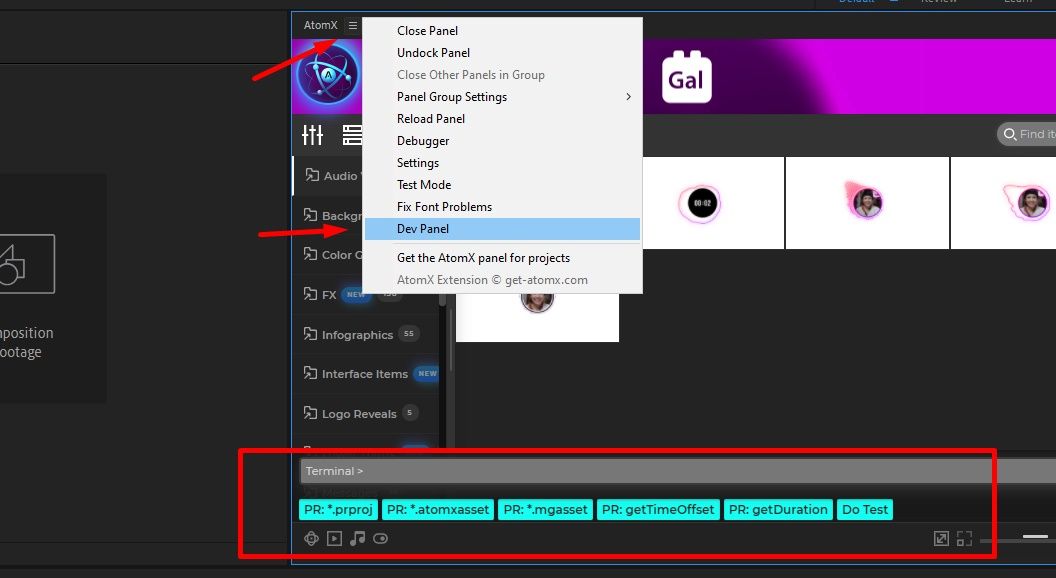
The Developer Panel allows you to use certain actions during the package development process.
To launch dev panel, open the extension and click the three lines → Dev Panel.
Debugging
If for some reason you have damaged the JSON structure of your package, you can restore it using an online JSON parser.