VideoHive Integration
If you sell products on VideoHive (part of Envato) and want them to automatically generate purchase codes, follow the instructions below.
How to Integrate
To get started, you'll need to create a token on the Envato API website - this is done only once.
Log in to their website and go to the My Apps section. At the very bottom, you'll see a "Create a new token" button.
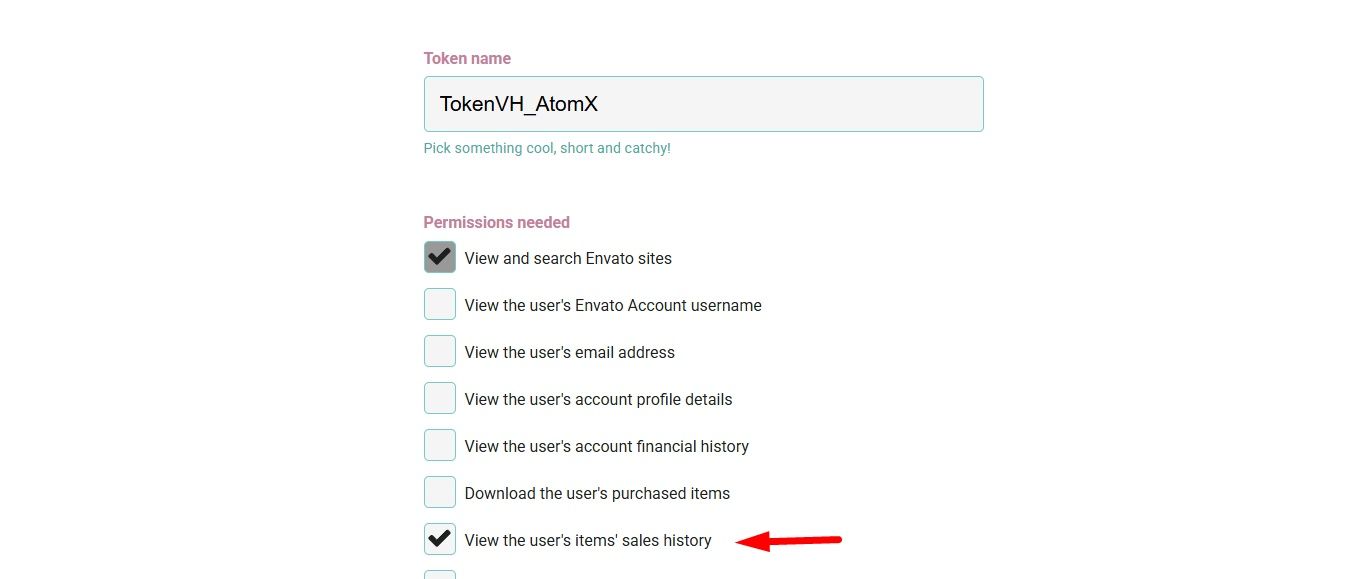
Enter any token name, check the box next to View the user's items' sales history, and create a token.
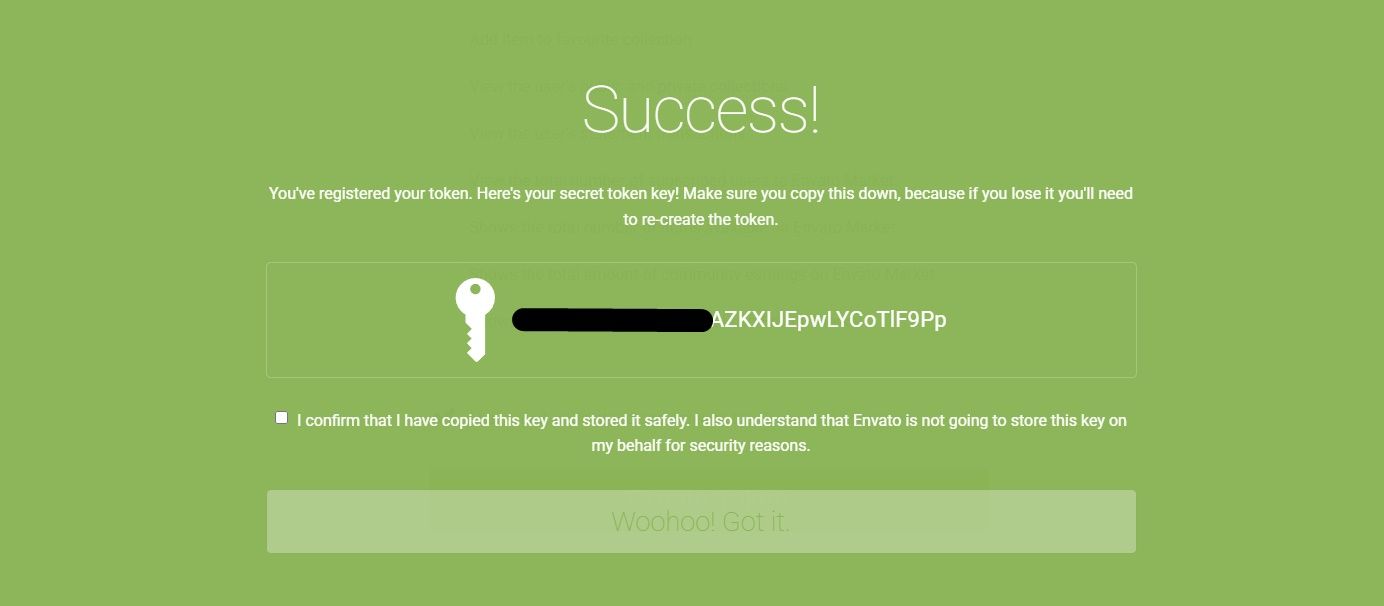
Copy and save the generated token key - if you lose it, you will have to create a new one.
Add the received token to your account settings (Integration Settings section) while in the admin panel.
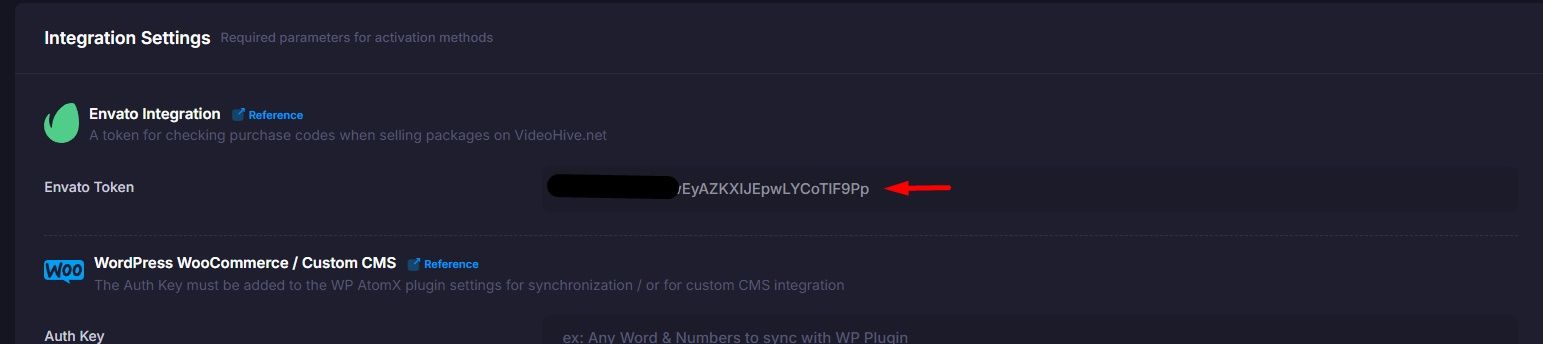
Save the settings, and VideoHive will now generate a purchase code for each purchase that the customer can use for activation.
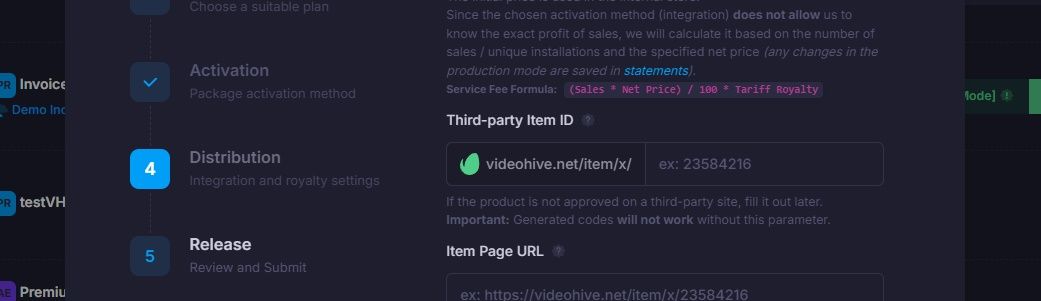
Also, after your product is approved on VideoHive, or if it's already approved, add VideoHive Item ID when creating or editing the package. Without this step, activation codes will not work.
Get a purchase code
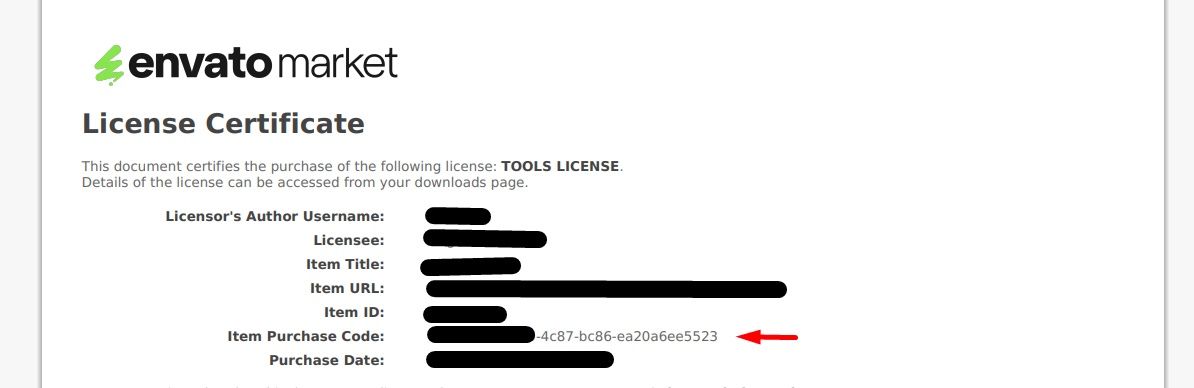
The customer can find the purchase code by clicking the download button and selecting the document format (text or PDF).

The purchase code used to activate the package will be displayed inside.