
Overview
Quick Start
What do you need to create your own package?
Any editor with code highlighting for ease of use, a little time and a passion!
To get started quickly, you can download ready-made example packages.
A package can only be created for a specific application - After Effects or Premiere Pro.
Regardless of the application, they have a similar structure; only the settings for the application or a different type of packaging of elements, depending on the program, differ.
Preview Files
One element uses two files (the main image in PNG format and a preview file - GIF/MP4/ or WEBM).
use_webm_preview parameter in Package Options.| Type | Aspect Ratio | Display Example | Description |
|---|---|---|---|
DEFAULT | 16:9 |  | Size from 240x135 (by default) |
VERTICAL | 9:16 |  | Size from 135x240 |
BOX_MAX | 1:1 |  | Size from 240x240 |
BOX_MIN | 1:1 |  | Size from 135x135 |
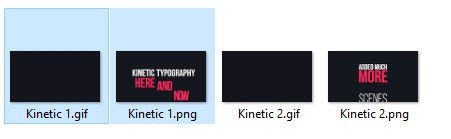
File Structure
For After Effects projects, use the Atom After Effects folder / for Premiere Pro, use the Atom Premiere Pro folder.
Atom Preview Assets - a folder with previews of elements.
├── Package Folder/
│   ├── Package File.atom   # Any name with format .ATOM
│   ├── Atom After Effects/
│   │   └── My Ae Project.aep  # Any name .AEP project
│   │       └── AE Composition Name
│   │       └── ...
│   ├── Atom Preview Assets/
│   │   └── My Ae Project  # Folder with name AE project (can be changed via settings)
│   │       └── AE Composition Name.png  # PNG Preview
│   │       └── AE Composition Name.gif  # GIF Preview animation (can be changed to .webm/.mp4 in settings)
│   │       └── ...
├── Package Folder/
│   ├── Package File.atom   # Any name with format .ATOM
│   ├── Atom Premiere Pro/
│   │   └── My Mogrt.mogrt   # Any name .MOGRT
│   │   └── My Pr Project.prproj  # Any name .PRPROJ project
│   │       └── PR Sequence Name
│   │       └── ...
│   ├── Atom Preview Assets/
│   │   └── My Pr Project/  # Folder with name project (can be changed via settings)
│   │       └── PR Sequence Name Name.png  # PNG Preview
│   │       └── PR Sequence Name Name.gif  # GIF Preview animation (can be changed to .webm/.mp4)
│   │       └── ...
│   │   └── My Mogrt.png
│   │   └── My Mogrt.gif
Depending on the nesting of folders, the structure will change, but will always remain tree-like.
Package File
A package is a JSON structure with a description of elements and internal settings.
{
    "settings": {
      "main": {
          "name" : "Your Package Name",
          "version" : "1.0",
          "required_app_version": "3.0",
          "software_id" : "AE",
          "software_version" : "CC19",
          "engine_pack" : "_COMPOSER",
          "required_purchase_code" : false,
          "cc_author_username" : "Author Name"
      },
      "inside_option_sets": {
          "source_type": "PROJECT",
          "customizer_control_range": {
              "Slider": [-2000, 2000],
              "Slider 2": [0, 200],
          },
          ...
      },
      "stylization": {
          "header_color_hex": "#021523",
          ...
      }
    },
    "structure": {
      ...
    }
}
Let's take a closer look at the package settings.
| Section | Description |
|---|---|
main | Basic package settings: including the author's name to link with the server, package engine options, and other details that can be overridden at the package compilation stage. |
inside_option_sets | Package specific options that can be global or application specific. See Package Options for details. |
stylization | The overall styling of the package is minimal with options. Learn more in Stylization. |
Section: main
All of these parameters are easy to override at the package compilation stage, but they can be set in advance.
AE - for After Effects / PR - for Premiere ProExample: CC24 - in versions below the required, the package cannot be installed and the user will receive a notification about this.
_COMPOSER - A standard engine that allows you to use all the main features of the extension (import of compositions/sequences/MOGRT/video and audio elements)._TEXT_PRESETS - Use presets and settings for text animation (deprecated)._CM_PRESET_MANAGER - Turns the extension into a system for applying presets and managing them through the customizer.true or falseSection: inside_option_sets
Allows you to customize the extension's behavior (when applying elements, preview settings, and more). For more details see Package Settings.
Section: stylization
Allows you to set minor package styling (color, package header). For more details see Stylization.
Main Structure
The main structure is described in the structure block.
{
    "settings": {...},
    "structure": {
        "Root Group 1": {
            "Inner Group 1": {
                "Nested Group 1": {...}
            },
            "Inner Group 2": {...}
        },
        "Another Root Group": {...}
    }
}
Groups
Groups (simple like folders) help organize elements and make them easier to work with. You can create unlimited nesting while maintaining the content hierarchy.
"Root Group 1": {...}
"Root Group 1": {...},
"Root Group 2": {
    "Inner Group 1": {...}
}
"Root Group 1": {
    "Inner Group 1": {...},
    "Inner Group 2": {...}
}
"Root Group 1": {
    "Inner Group 1": {
        "Nested Group 1": {...},
        "Nested Group 2": {...}
    },
    "Inner Group 2": {...}
}
Group of Elements
To turn any group into a template (a group of elements within a template/assets/etc...), you simply need to add a preview object to the endpoint of the group.
"Root Group 1": {
    "Inner Group 1": {
        "Nested Group 1": {...},
        "Nested Group 2": { # Already as template/MOGRTs/assets (group with preview elements)
            "preview": {
              ...
            }
        }
    },
    "Inner Group 2": {...}
}
You can already apply special options to such a group (they will work for the entire group). For more details see Group Options.
Elements
To start using an element inside a template folder/hierarchy, you need to add a preview object and inside it specify each element that will be in it.
If you specify preview in the destination group/template, it will become an object for elements (template/individual elements).
"Root Group 1": {...},
"Root Group 2": {
    "Inner Group 1": {
        "Instagram Stories": { # Templates file name without ext / folder with assets (audio/video/mogrts)
            "preview": { # <- It is important to start using the elements
                "GS_1": {"enabled": true, "name": "Scene 1", "options": false, "custom_args": {}}
            }
        }
    }
}
Each element must have any, but unique ID (numbers, letters). Ex below: GS_1
"GS_1": {"enabled": true, "name": "Scene 1", "options": false, "custom_args": {}}
Basic Element Options
true or falseUsage:
ICON_ID@TEXT (separate by @). Ex: options: "pen@Custom Text"List with default description:
threeD- 3D AnimationpuzzlePart- Mask PathdiamondPick- Our choiceplugIn- Need Plug-inpen- Fontpen2- Font MixwinnerCup- Fresh Iteminfo- ... (default)
Full Example
This example is for After Effects.
File Structure
├── Package Folder/
│   ├── Package File.atom
│   ├── Atom After Effects/
│   │   └── Minimal.aep
│   │   └── Typography
│   │       └── Stomp.aep
│   ├── Atom Preview Assets/
│   │   └── Minimal/
│   │       └── Minimal 1.png
│   │       └── Minimal 1.gif
│   │       └── ...
│   │   └── Typography/
│   │       └── Stomp/
│   │           └── Stomp 1.png
│   │           └── Stomp 1.gif
│   │           └── ...
JSON Structure
The elements inside the preview block are compositions inside the After Effects project file.
{
 "settings": {
      "main": {
          "name" : "YOUR_PACKAGE_NAME",
          "version" : "1.0",
          "required_app_version": "3.0",
          "software_id" : "AE",
          "software_version" : "CC18",
          "engine_pack" : "_COMPOSER",
          "required_purchase_code" : false,
          "cc_author_username" : "YOUR_NICKNAME"
      },
      "inside_option_sets": {
      "auto_size_composition": "ONLY_MAIN",
          "auto_fps_composition": "NONE",
          "duplicate_origin_setting": "ALL_COMPS"
      },
      "stylization": {
          "header_color_hex": "#021523"
      }
 },
"structure": {
    "Minimal": {
        "preview": {
            "ML_1": {"enabled": true, "name": "Minimal 1", "options": false, "custom_args": {}},
            "ML_2": {"enabled": true, "name": "Minimal 2", "options": false, "custom_args": {}},
            "ML_3": {"enabled": true, "name": "Minimal 3", "options": false, "custom_args": {}},
            "ML_4": {"enabled": true, "name": "Minimal 4", "options": false, "custom_args": {}},
            "ML_5": {"enabled": true, "name": "Minimal 5", "options": false, "custom_args": {}},
            "ML_6": {"enabled": true, "name": "Minimal 6", "options": false, "custom_args": {}}
        },
        "preview_name_instead_id": true,
    },
      "Typography": {
          "Stomp": {
              "preview": {
                  "STM_1": {"enabled": true, "name": "Stomp 1", "options": false, "custom_args": {}},
                  "STM_2": {"enabled": true, "name": "Stomp 2", "options": false, "custom_args": {}},
                  "STM_3": {"enabled": true, "name": "Stomp 3", "options": false, "custom_args": {}},
                  "STM_4": {"enabled": true, "name": "Stomp 4", "options": false, "custom_args": {}},
              },
              "preview_name_instead_id": true,
          }
      }
  }
}